
KjosGuard Documentation
From signing in to subscribing, including network issues: every screen of the app, with real screenshots and concrete explanations.
Documentation contents
See the app in action
A quick tour of KjosGuard: install, sign in, day-to-day protection and managing your subscription.
Demo video coming soon
A full walkthrough of the app, coming here soon.
Discovering the app
On the very first launch, before signing in, the app shows three welcome screens explaining what KjosGuard does.
- "Stop the ads 😤" — always-on ad blocking, across every app.
- "Faster" — fewer scripts loaded, fewer distractions, smoother browsing.
- "Free trial" — the trial period starts automatically, no commitment and no card required.
These screens only show once, at install time. A user who signs out and back in lands directly on the sign-in screen, not the intro.
Signing in with Google
KjosGuard doesn't use passwords: signing in happens only through a Google account, with a single button.
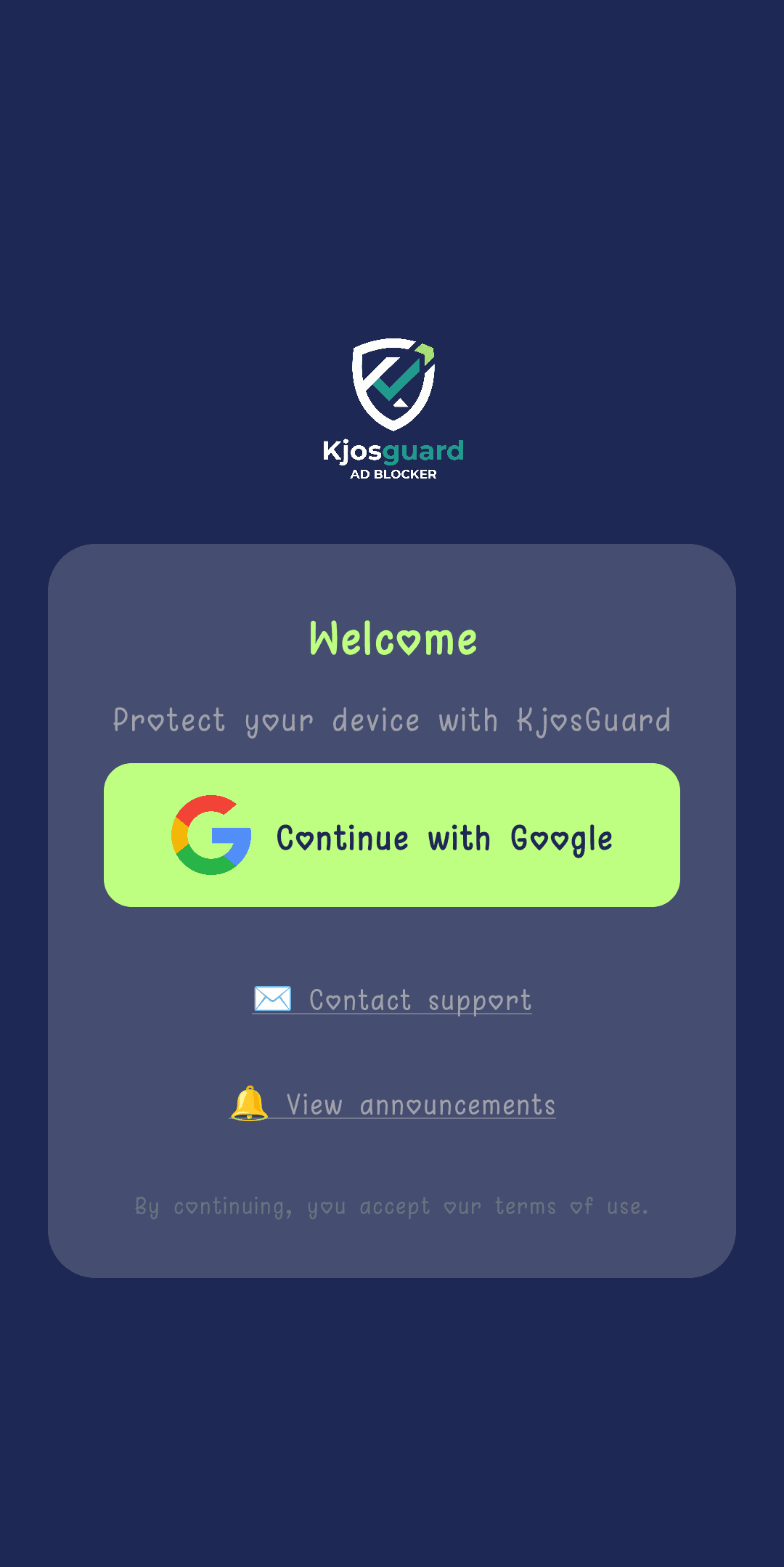
- Tapping "Continue with Google" opens the native Android account picker.
- Picking an account is enough — KjosGuard never asks for a password.
- Continuing the sign-in counts as accepting the terms of service, reminded right under the button.
- Two links stay reachable from this screen even signed out: "Contact support" and "View announcements".
Turning protection on or off
The home screen ("Overview") is the main dashboard: a central button turns protection on or off.
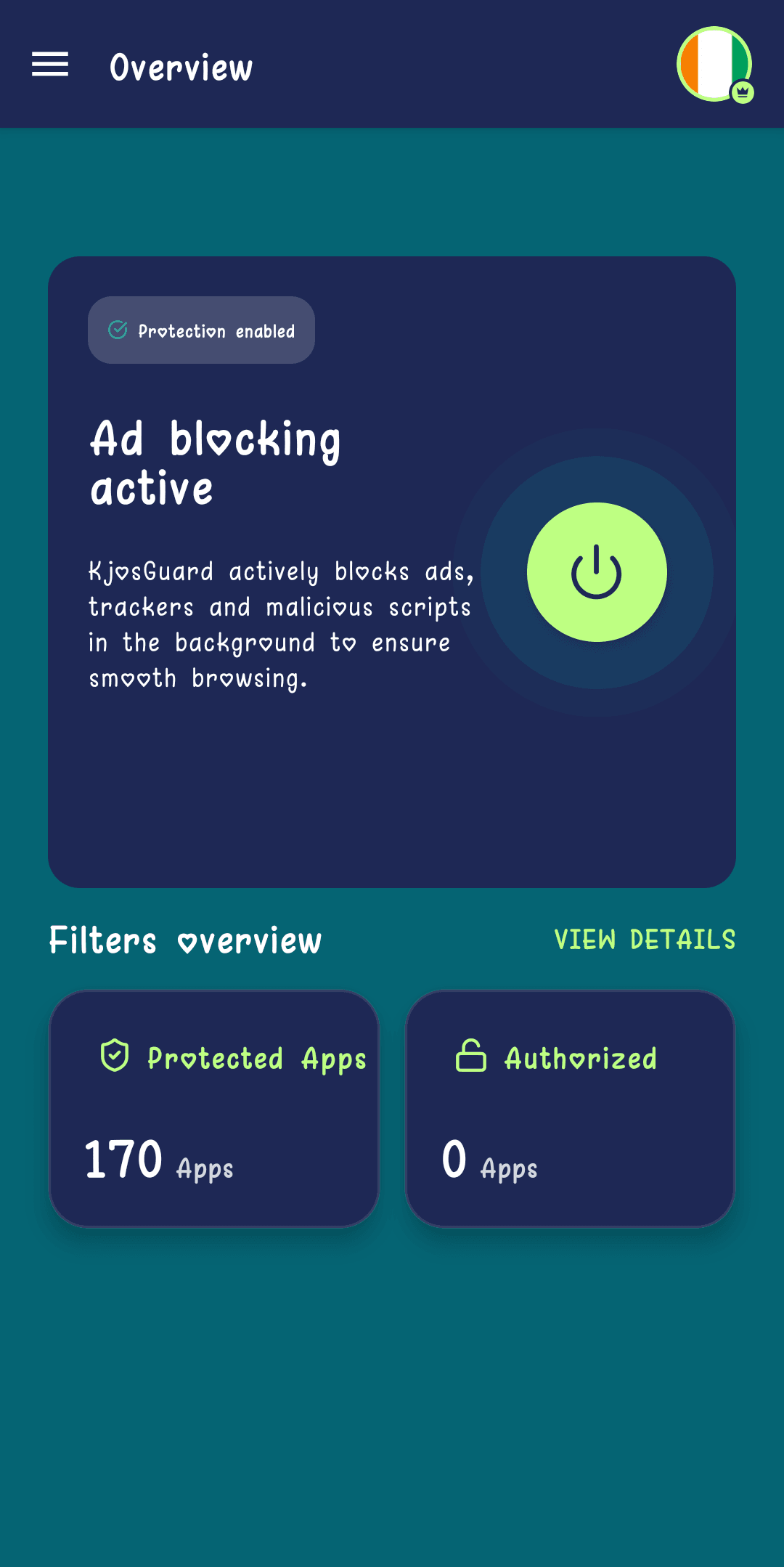
- The badge at the top of the card shows the real live status: "Protection on" or "Protection off".
- The central round button toggles blocking — the effect is immediate, no app restart needed.
- "Filter overview" sums up at a glance how many apps are protected versus explicitly allowed.
Choosing protected apps
Each installed app can be managed individually: block its ads or let it run normally.
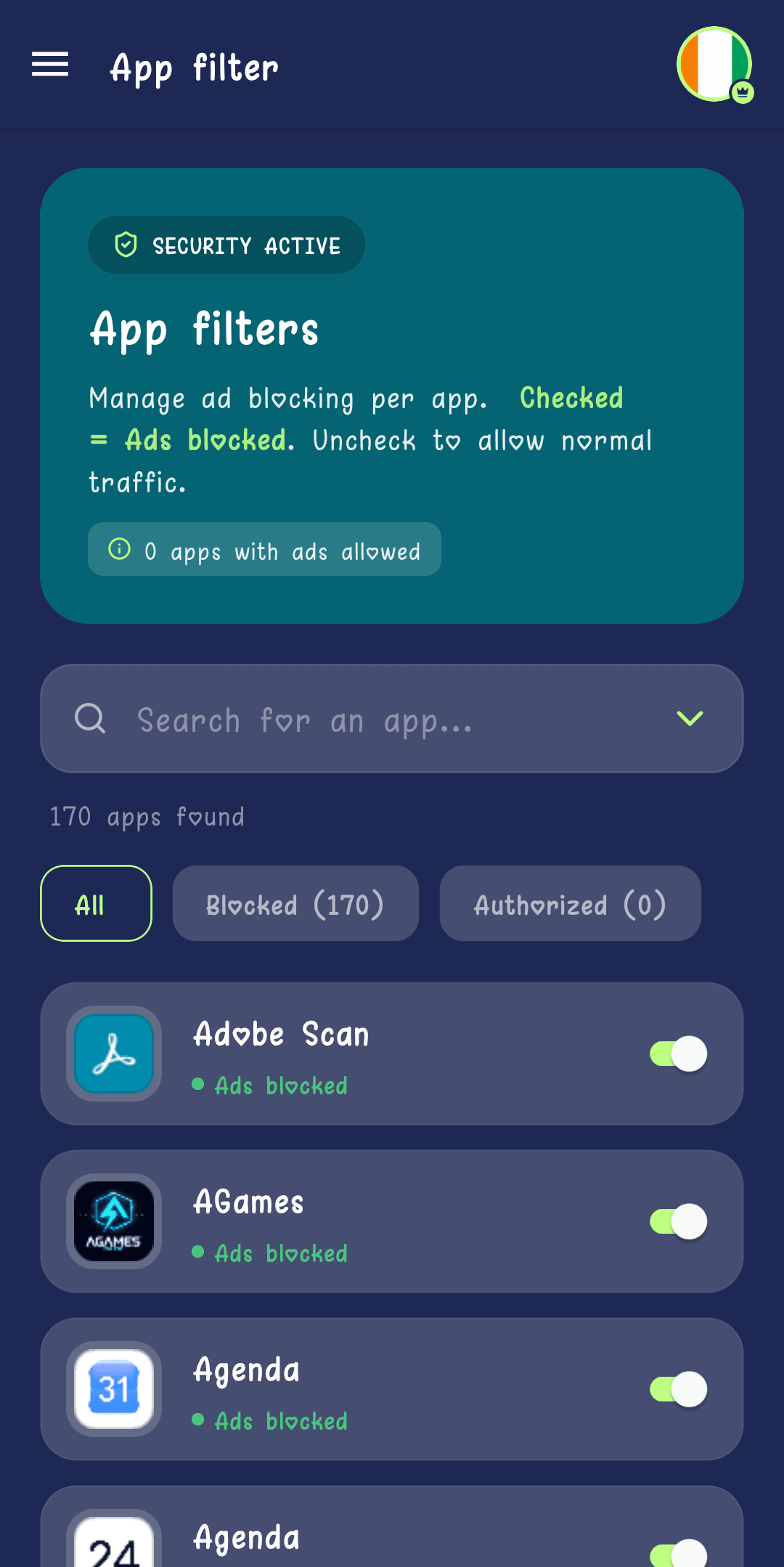
- A simple rule is reminded at the top: checked = ads blocked, unchecked = normal traffic allowed.
- A search bar and filters (All / Blocked / Allowed) help find an app in the list.
- The "apps with ads allowed" counter helps quickly spot active exceptions.
Announcements and messages
The notification center gathers announcements from the KjosGuard team and support-related messages in one place.
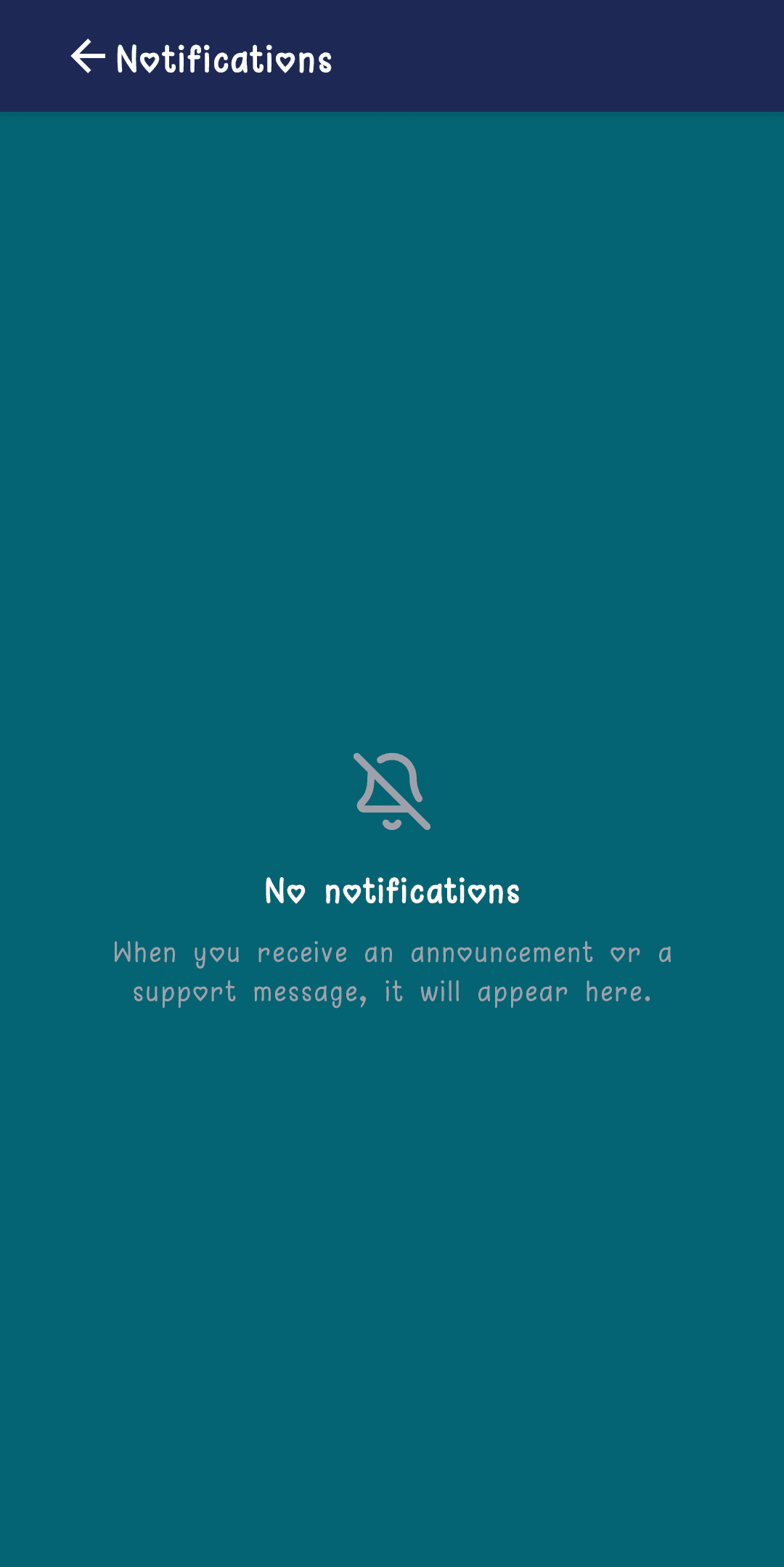
- Reachable from the side menu, and from the "View announcements" link on the sign-in screen for signed-out visitors.
- Opening a notification shows its full detail on a dedicated screen, with a back button.
- Empty by default: notifications appear as announcements and support replies come in.
During the trial period
Every new device gets a free trial with full access to premium features, with no card required.
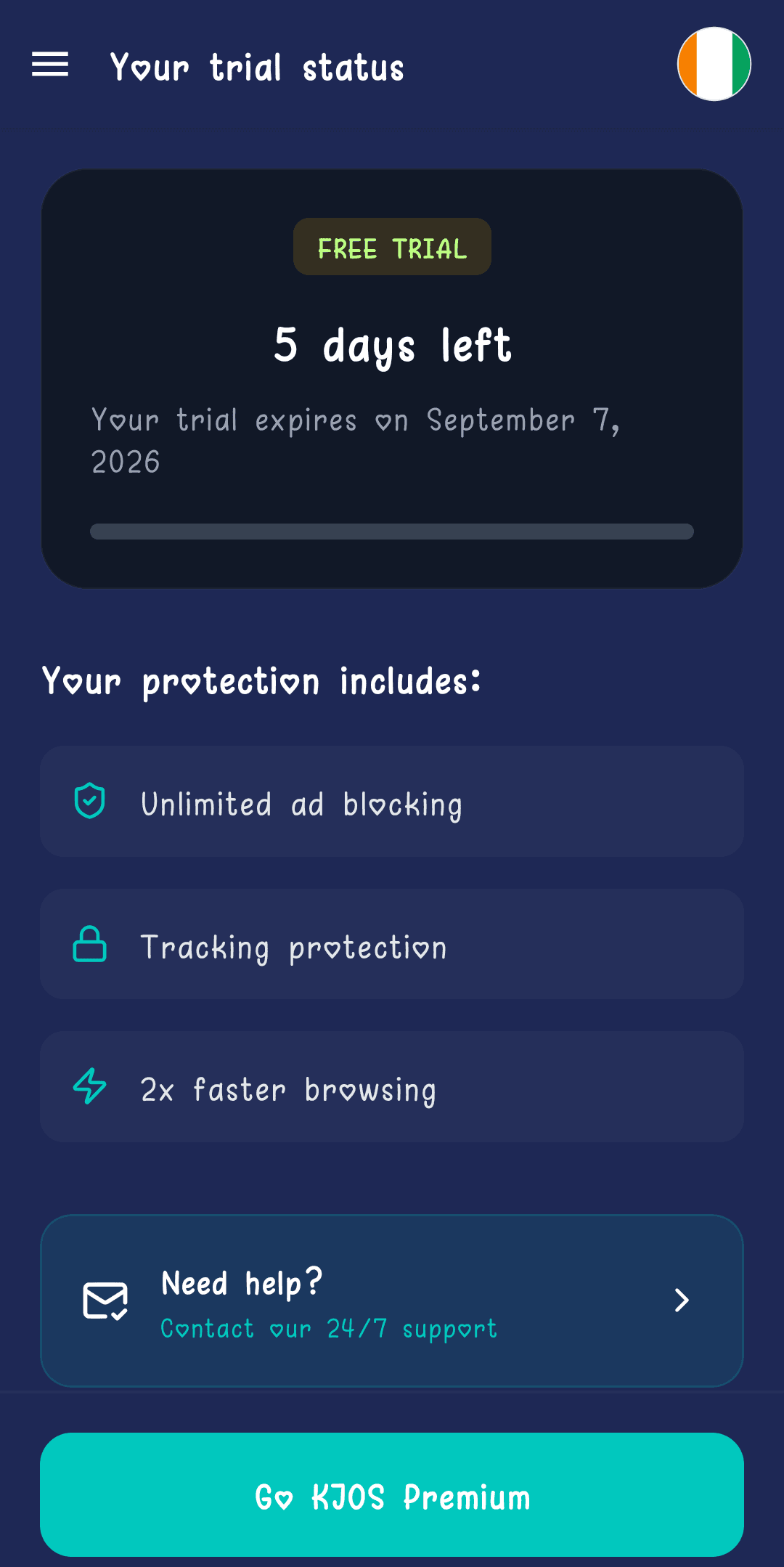
- A "FREE TRIAL" badge and a countdown ("X days left") show the exact expiry date.
- Protection during the trial matches premium exactly: unlimited blocking, anti-tracking, 2x faster browsing.
- "Upgrade to KJOS Premium" lets you switch to a paid plan at any time, even before the trial ends.
When the trial ends
When the trial (or a premium subscription) expires, the app switches to a dedicated screen inviting you to subscribe — protection stays at its last chosen state until you resubscribe.
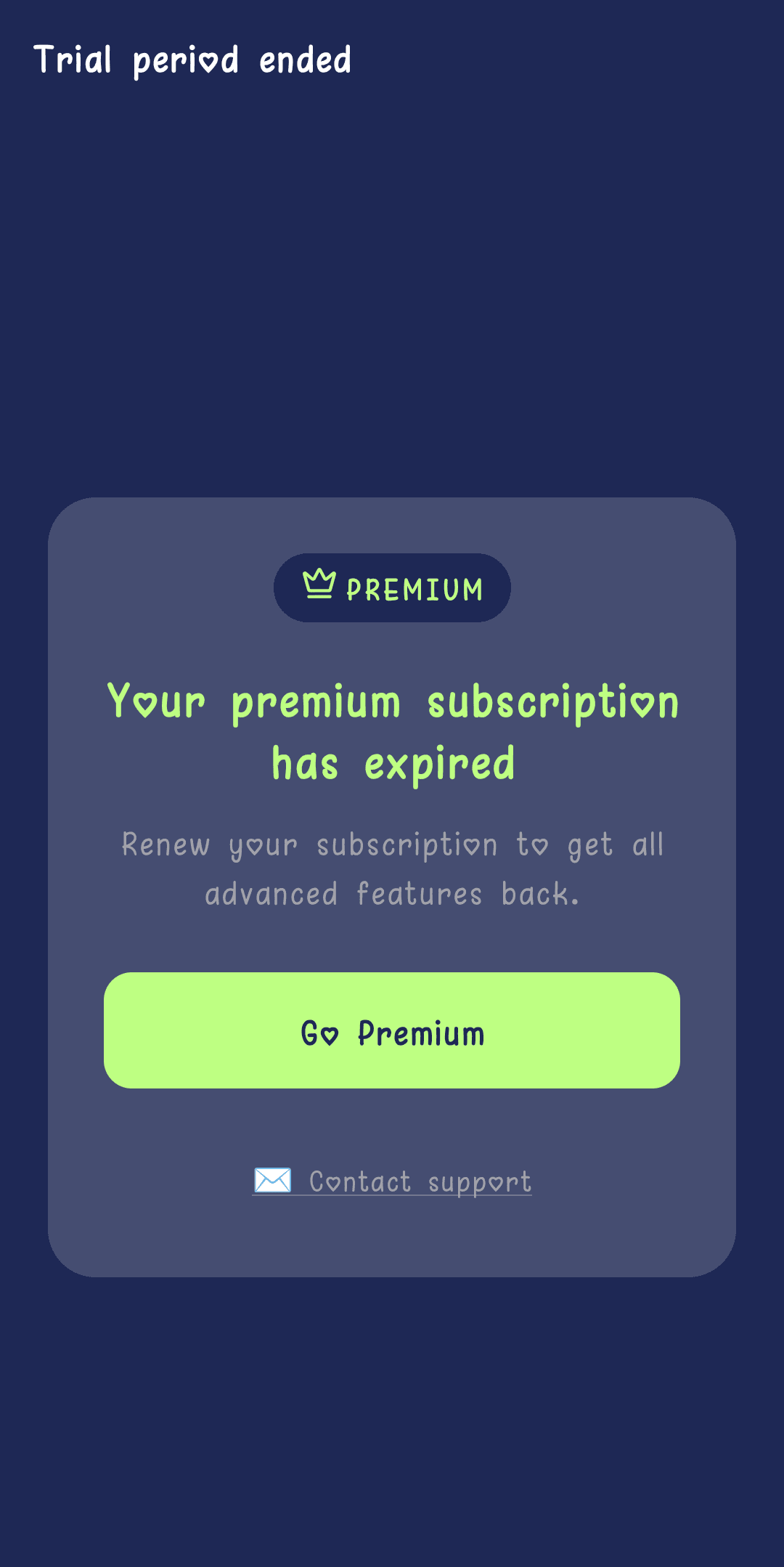
- The message automatically distinguishes a first trial ending ("Your trial period has ended") from a renewal ("Your premium subscription has expired").
- A single "Upgrade to Premium" button leads straight to the payment screen.
- The "Contact support" link stays visible for any question before paying.
Paying for your subscription
Payment happens through Paystack, in CFA francs or US dollars depending on region, for two plans: 6 months or 1 year.
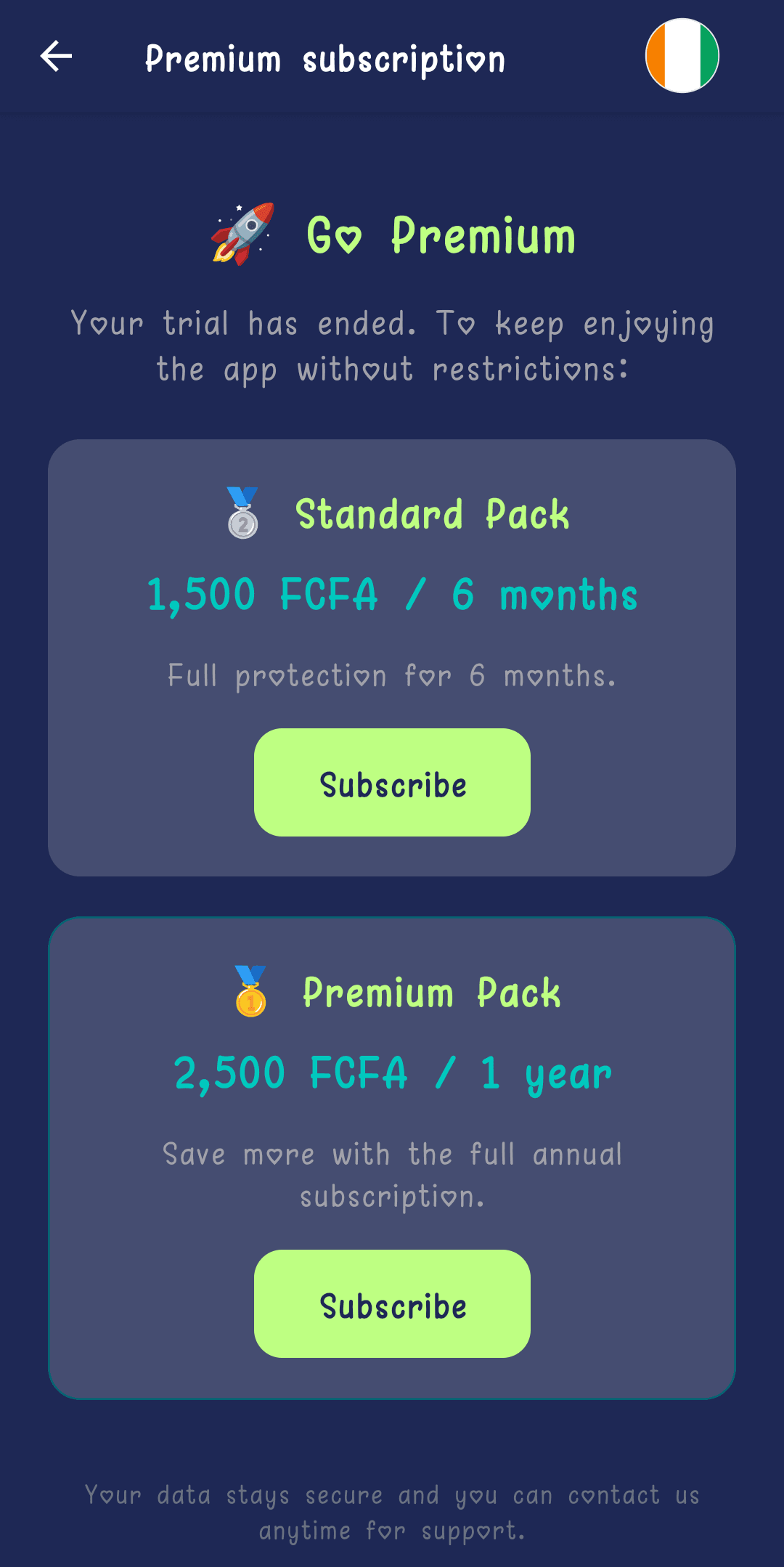
- The "Standard Pack" (6 months) and "Premium Pack" (1 year, best value per month) are shown side by side with pricing.
- The "Subscribe" button opens the built-in Paystack payment interface — no jump to an external browser.
- After payment, activation is checked automatically by the app; a "Payment confirmed!" message signals active Premium access.
See the "Connection issues" section for the messages shown when the network is slow or verification takes longer than expected during payment — no amount paid is ever lost.
Tracking your subscription
Once subscribed, the "Premium status" screen (Subscription menu) centralizes your protection expiry date, amount paid, and access to support.
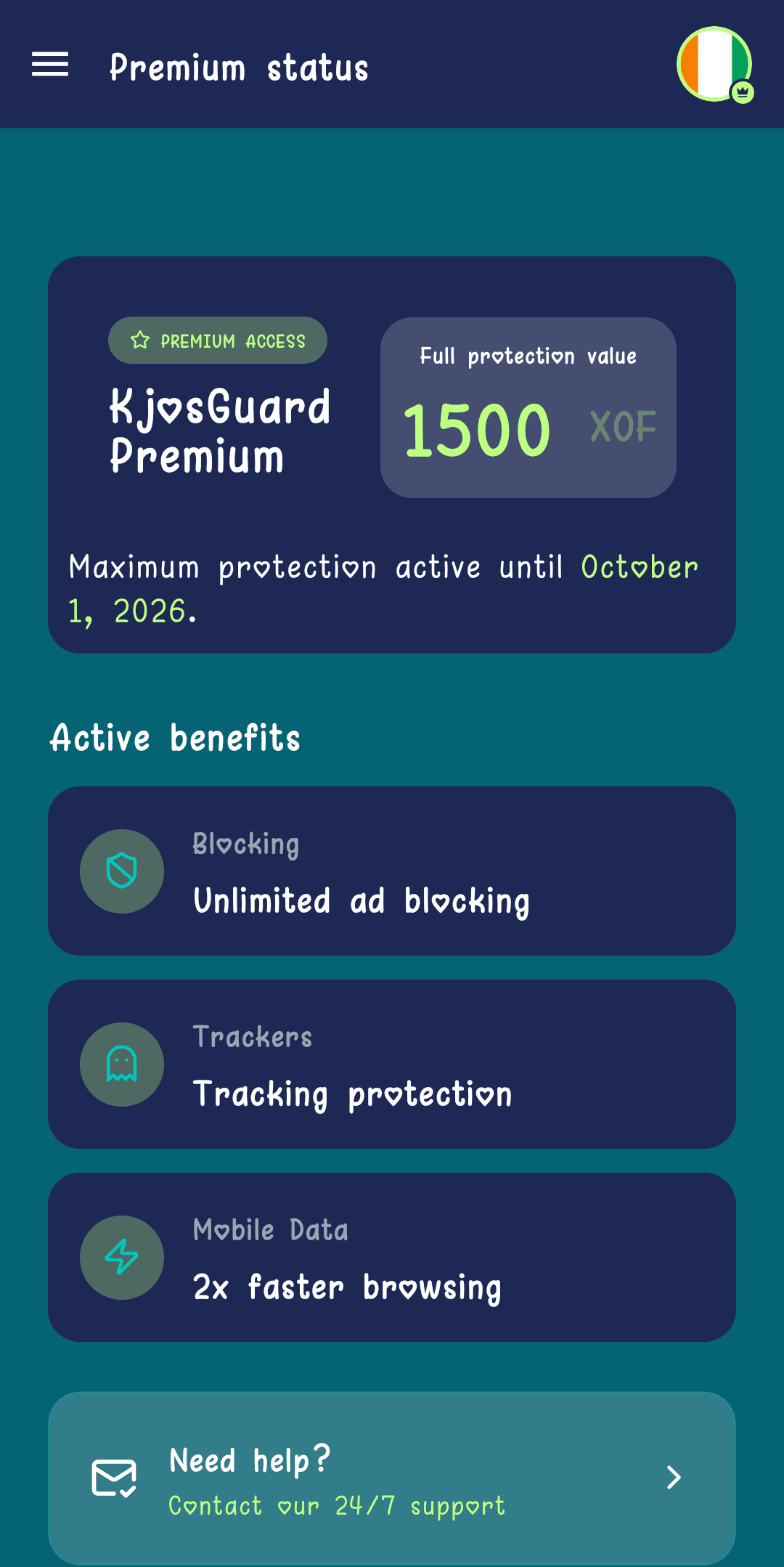
- The exact protection expiry date is spelled out in full ("Maximum protection active until...").
- Three active benefits are recapped: unlimited blocking, anti-tracking protection, 2x faster browsing.
- The "Need help? Contact our 24/7 support" card opens the built-in chat directly, with account context attached.
Reaching support from the app
A real, real-time chat built into the app connects every user to the KjosGuard team — no form, no inbox to watch.
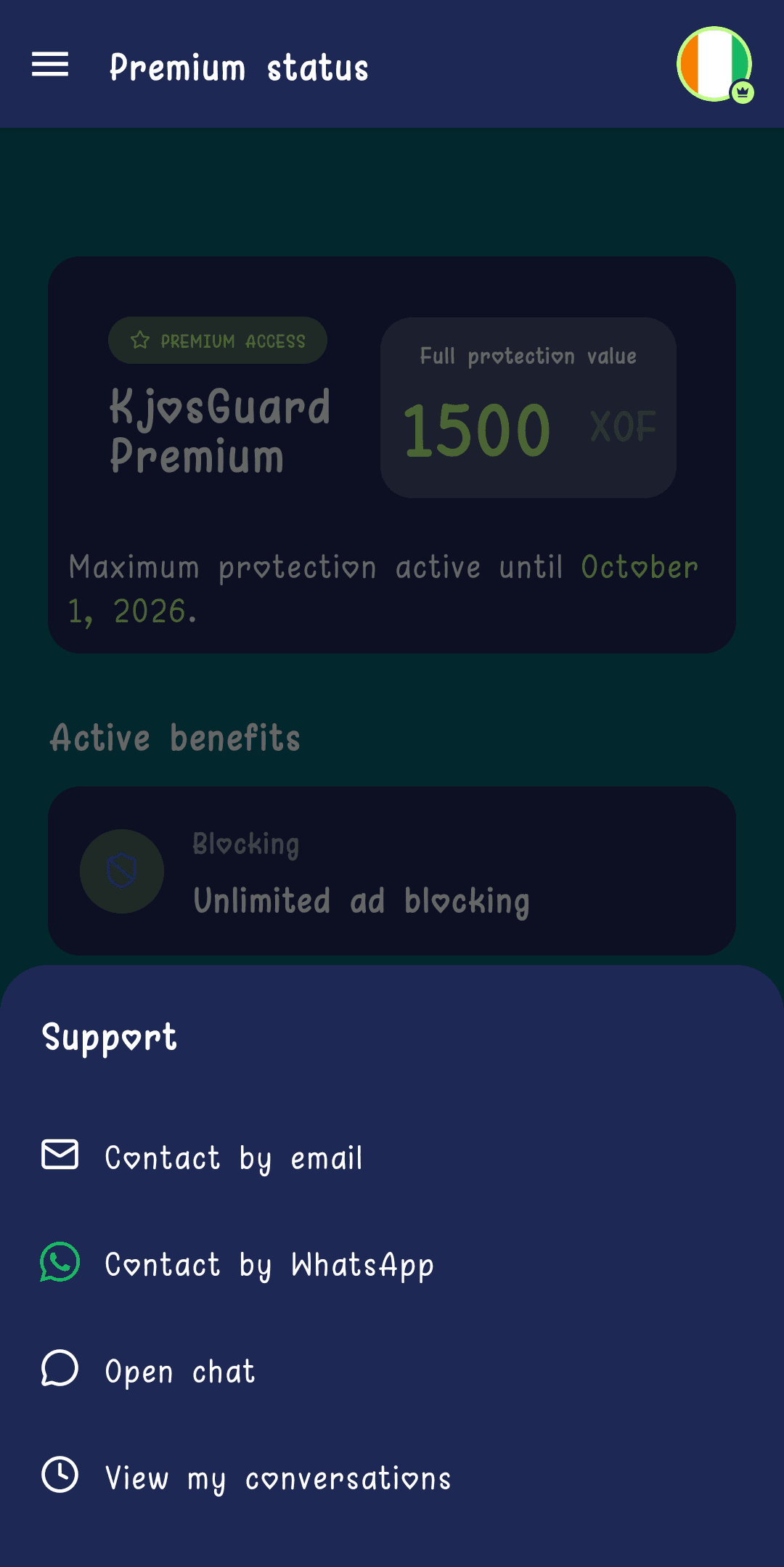
- Main entry point: the "Need help?" card on the Premium status screen, or the Blocked screen.
- Once a conversation is open, a floating button appears on every screen whenever a message is still unread.
- The conversation supports typing indicators, read receipts, and image sending — like a regular messaging app.
- Even before signing in, the sign-in screen already offers a "Contact support" link for questions beforehand.
Profile, language, and sign-out
The "My Profile" screen, reached by tapping the avatar in the top right of any main screen, gathers account-related settings.
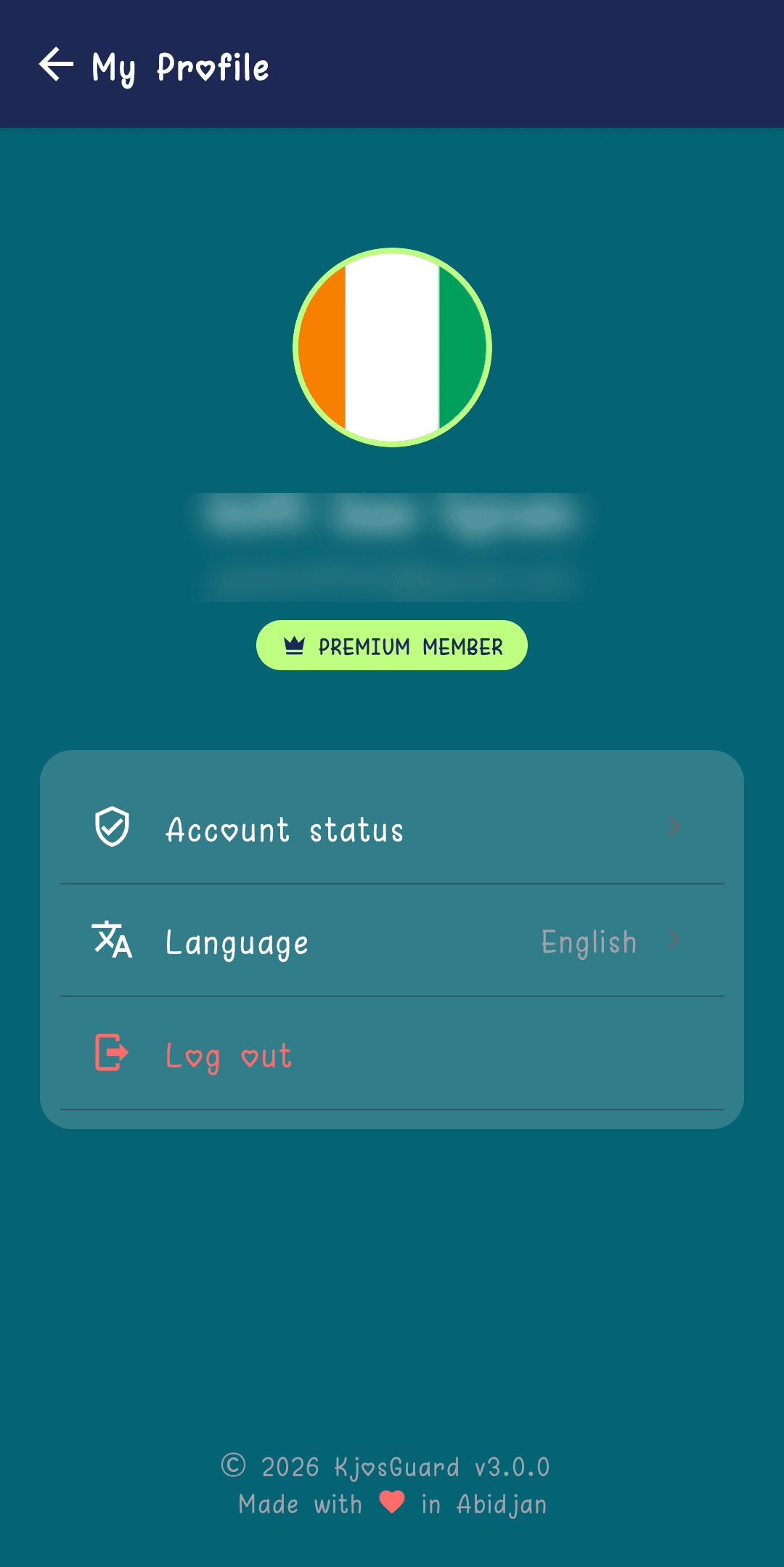
- The golden "PREMIUM MEMBER" badge only shows for accounts with an active subscription.
- "Account status" links to subscription details (trial or premium).
- "Language" lets you switch the whole app's language among 6 available languages, with no restart.
- Signing out always asks for explicit confirmation before closing the session.
Google sign-in error
If the network drops during sign-in, the app shows a clear message instead of getting silently stuck.
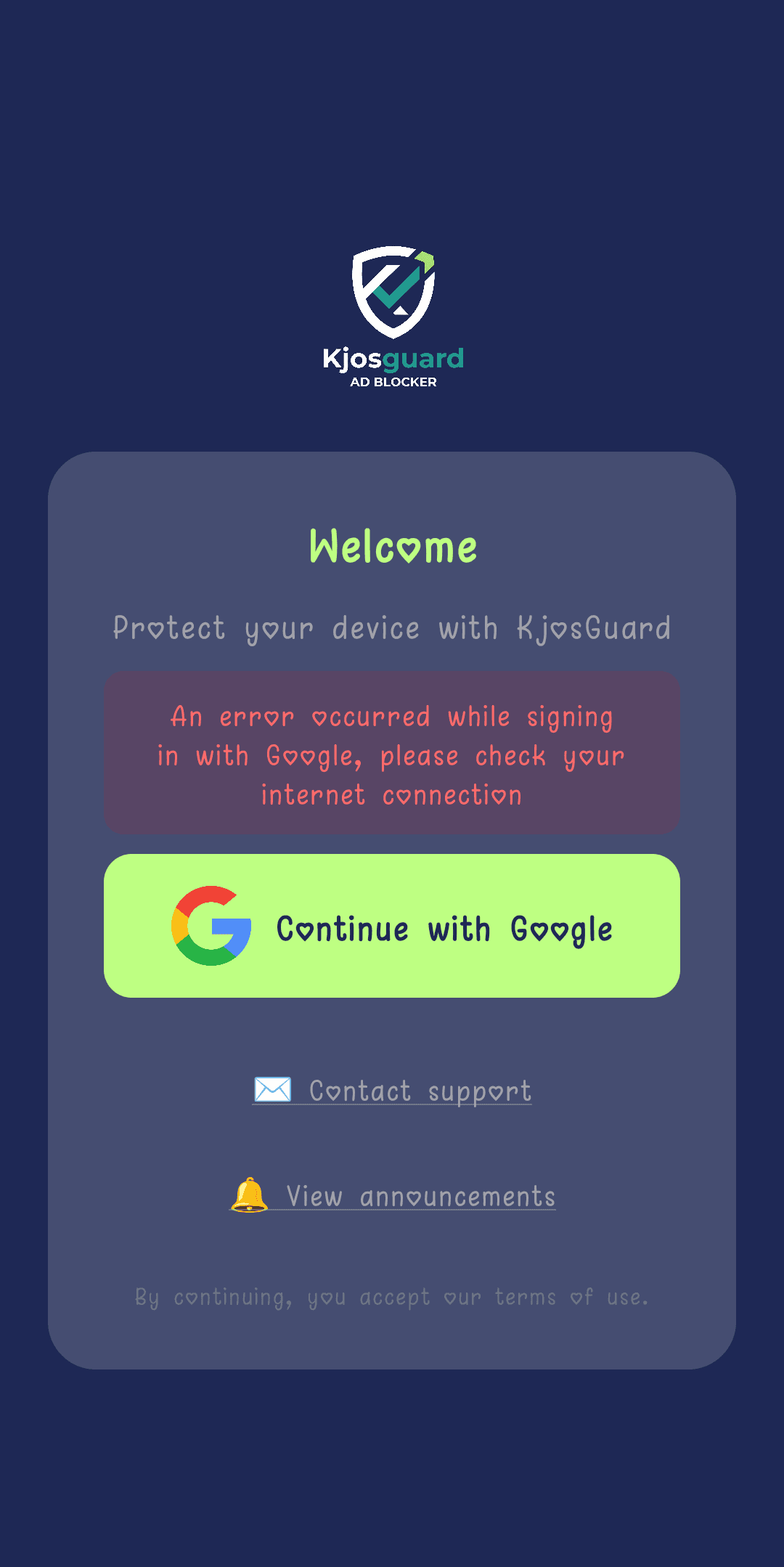
- "An error occurred signing in with Google, check your internet connection" appears directly on the welcome screen.
- The "Continue with Google" button stays active: tapping it again simply starts a new attempt.
- No data is lost — a stable internet connection is all it takes to try again.
Protection turned off
Protection can stop voluntarily (button switched off by the user) or after a system interruption — the home screen always signals it clearly.
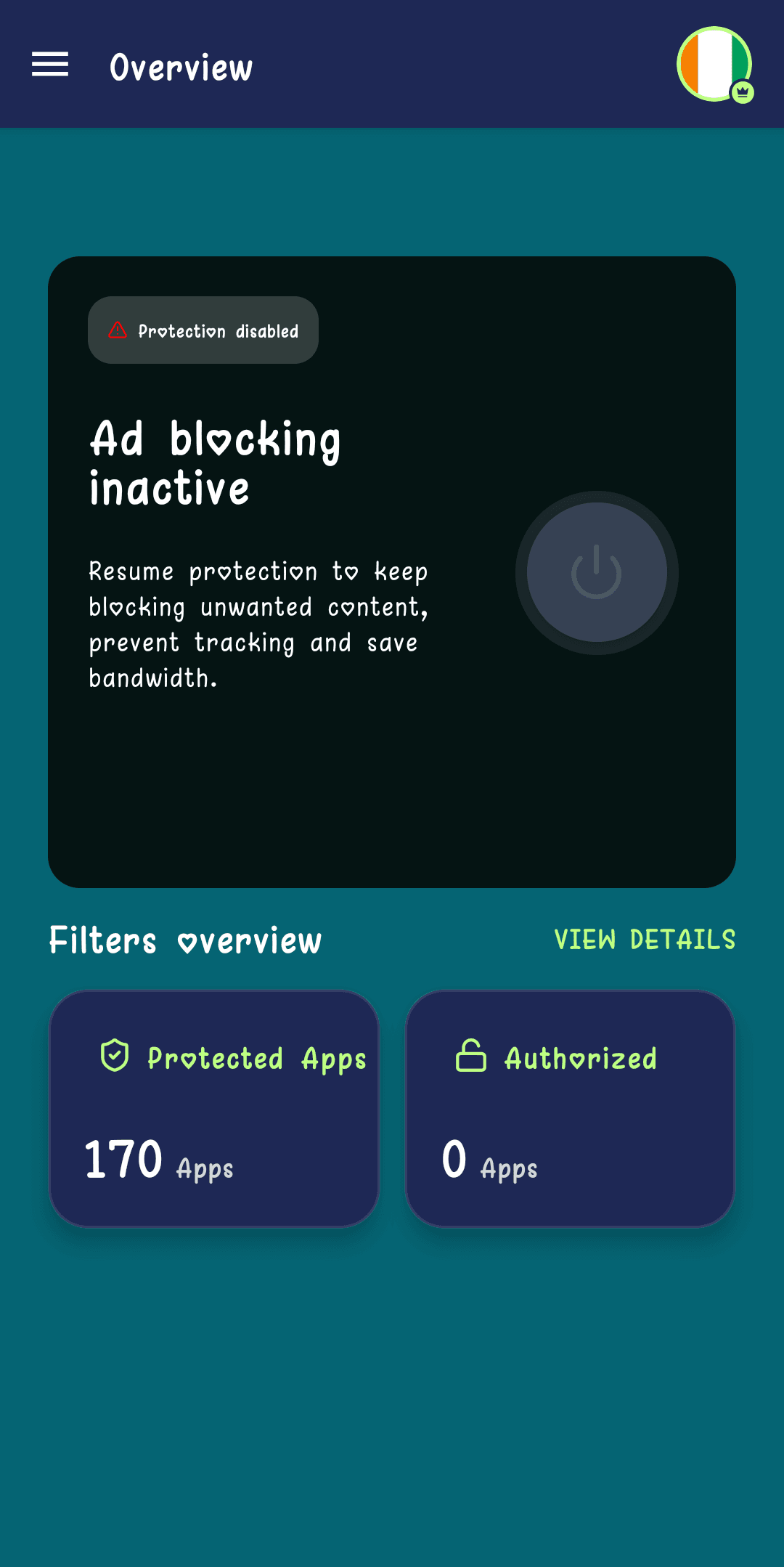
- The badge switches from "Protection on" (teal) to "Protection off" (red), and the central button turns gray.
- The accompanying text recaps what protection prevents: unwanted content, tracking, wasted data.
- A single tap on the round button is enough to turn protection back on — no reconfiguration needed.
Device clock out of sync
To protect Premium access against fraud (tampering with the system date), KjosGuard checks that the device clock matches an online time server.
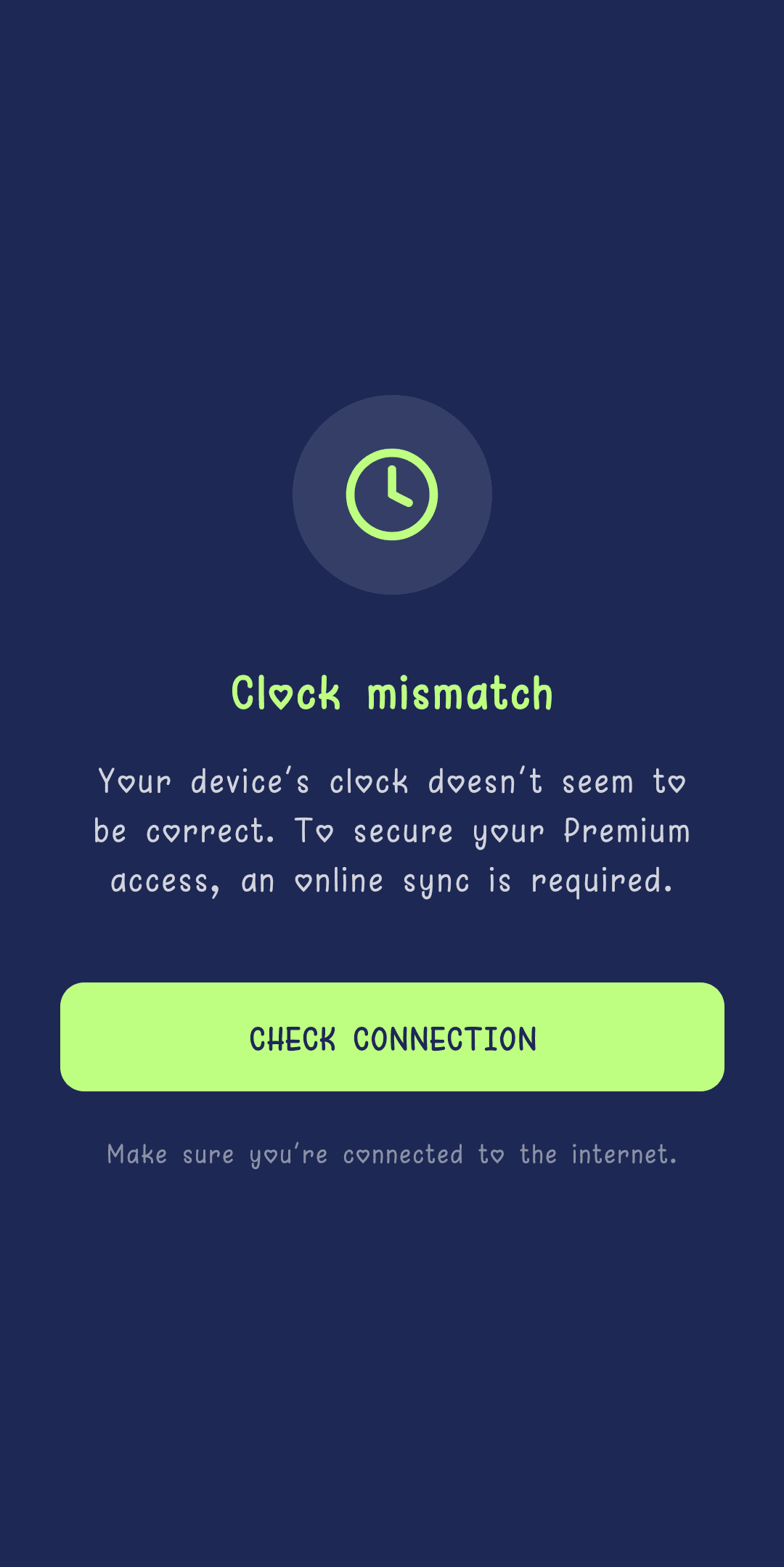
- "Clock Mismatch" shows full-screen, temporarily blocking access until the check passes.
- The message is explicit: "Your device's time doesn't look correct. To secure your Premium access, an online sync is required."
- The "CHECK CONNECTION" button retries the check — simply being connected to the internet usually resolves the block.
This screen doesn't depend on any setting to change manually on the phone: it just waits for an active internet connection to automatically re-sync the time.
Device locked
In rare cases (detected abuse, flagged device), access to the app can be locked server-side — the screen explains it and offers a direct contact.
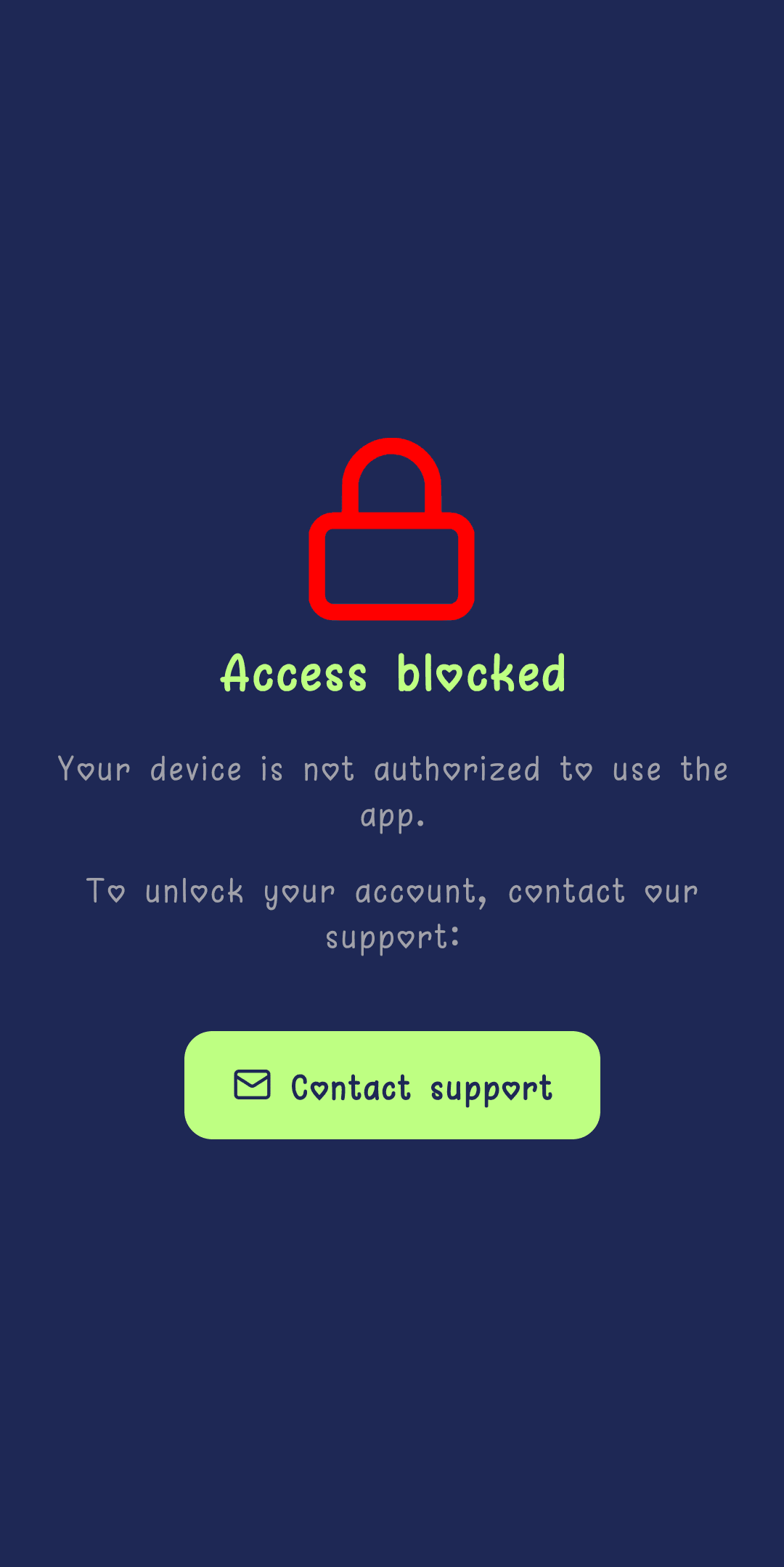
- "Access blocked" shows full-screen: "Your device isn't authorized to use the app."
- A "Contact support" button pre-fills a message with the device's unique identifier (UUID), for a faster unlock.
- No other action is possible from this screen until support has handled the request.
Unexpected error
If the app fails to start for an unforeseen reason (connection, local storage, native service), a fallback screen appears instead of a silent crash.
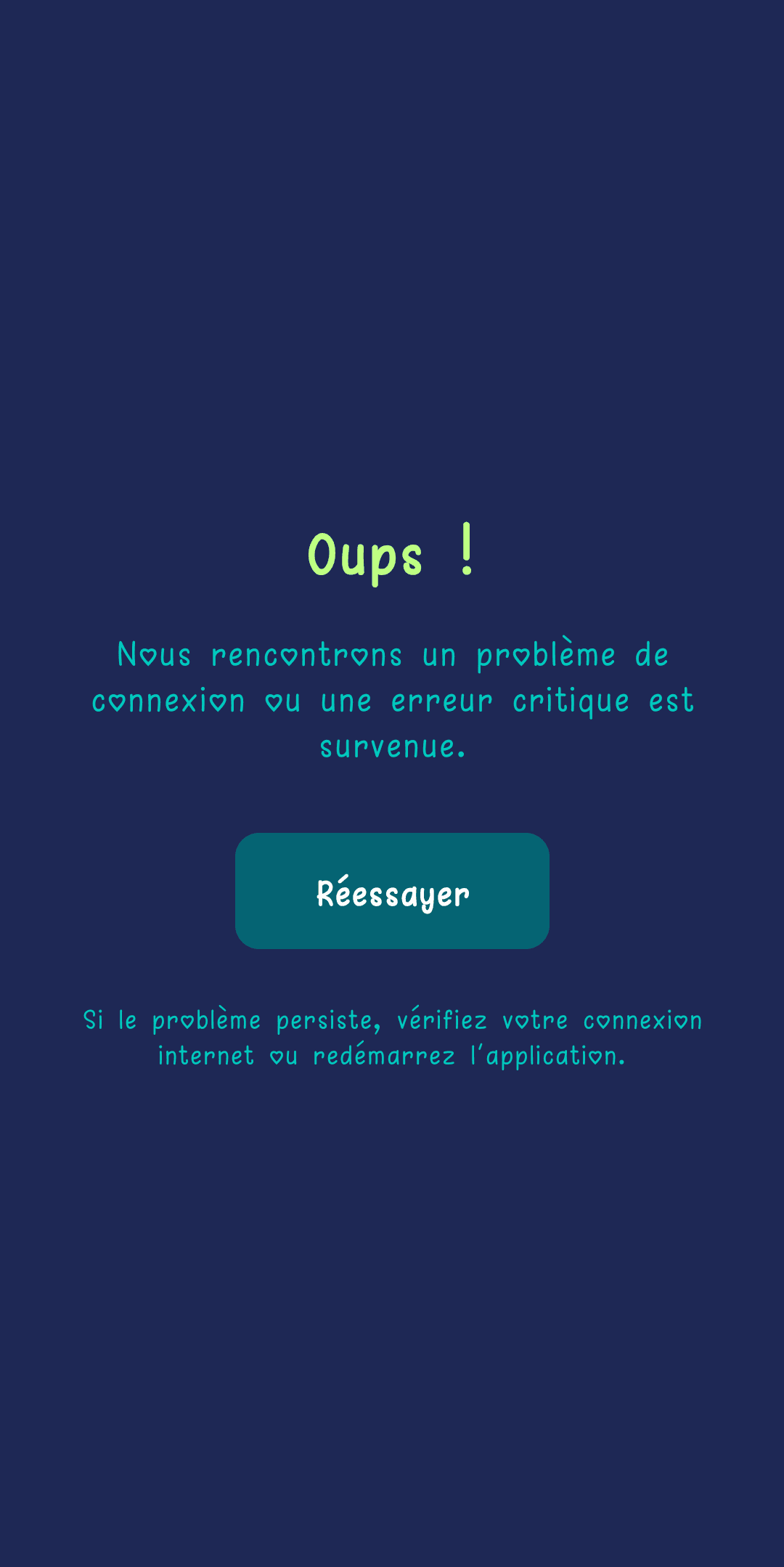
- "Oops!" — "We're having a connection issue or a critical error occurred."
- The "Retry" button directly relaunches the app's startup process, with no need to close it.
- Footer reminder: if the problem persists, checking the internet connection or restarting the app resolves the vast majority of cases.